
Website feedback,
on every screen size
Paste a web address and ProofNow captures the page on desktop, tablet and mobile. Your team and clients pin comments right where something is wrong and approve each version in one place.
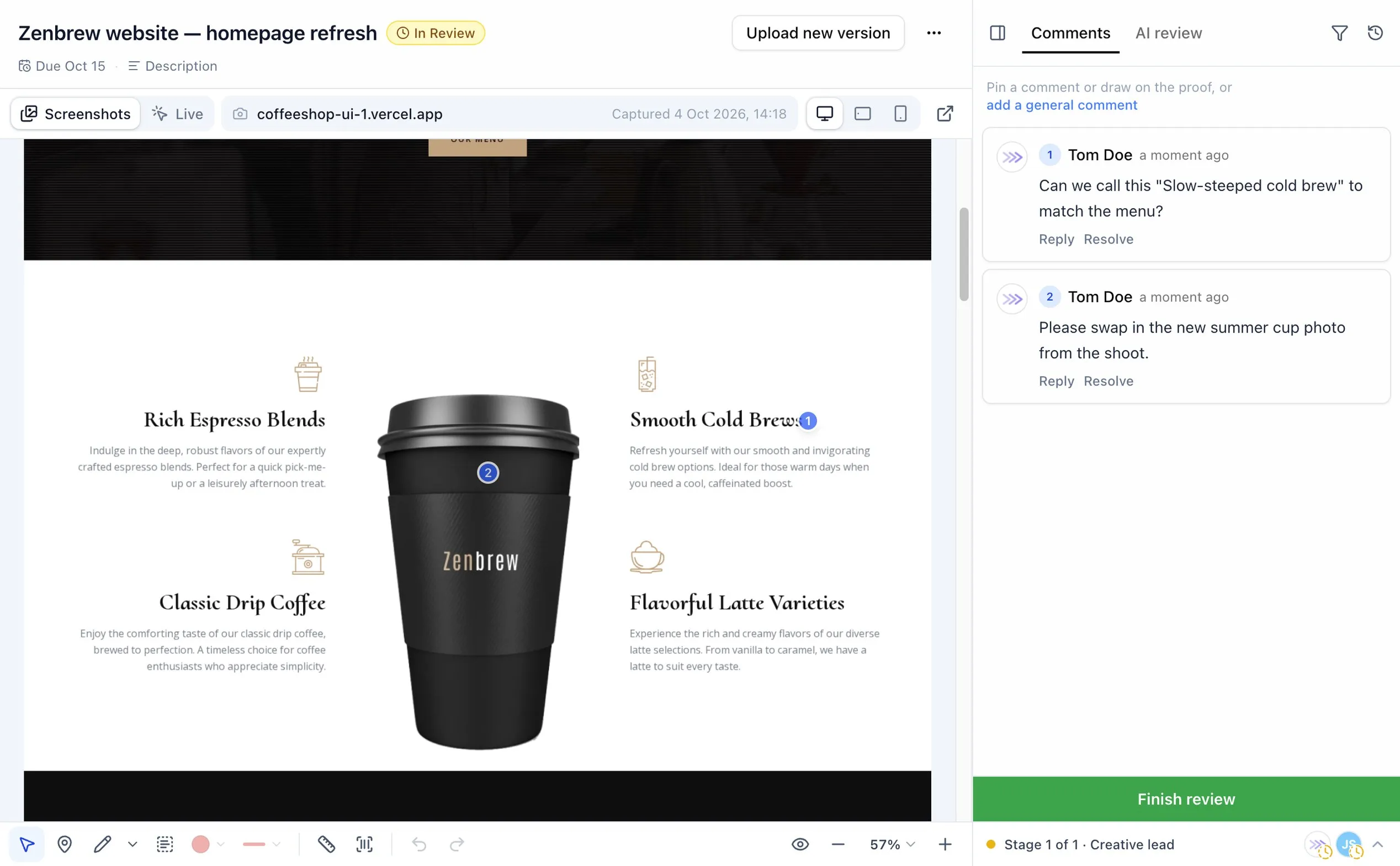
From web address to approval in three steps
No screenshots to stitch together, no long email threads about which page or which phone. Everyone looks at the same page and comments in the same place.
- 1
Paste the address
Add a website to a proof like any other file. Choose the screen sizes you want reviewed.
- 2
ProofNow takes the screenshots
Every screen size is captured from top to bottom, ready for review in a few seconds.
- 3
Collect comments and sign-off
Reviewers pin comments where they see a problem, then approve or ask for changes.
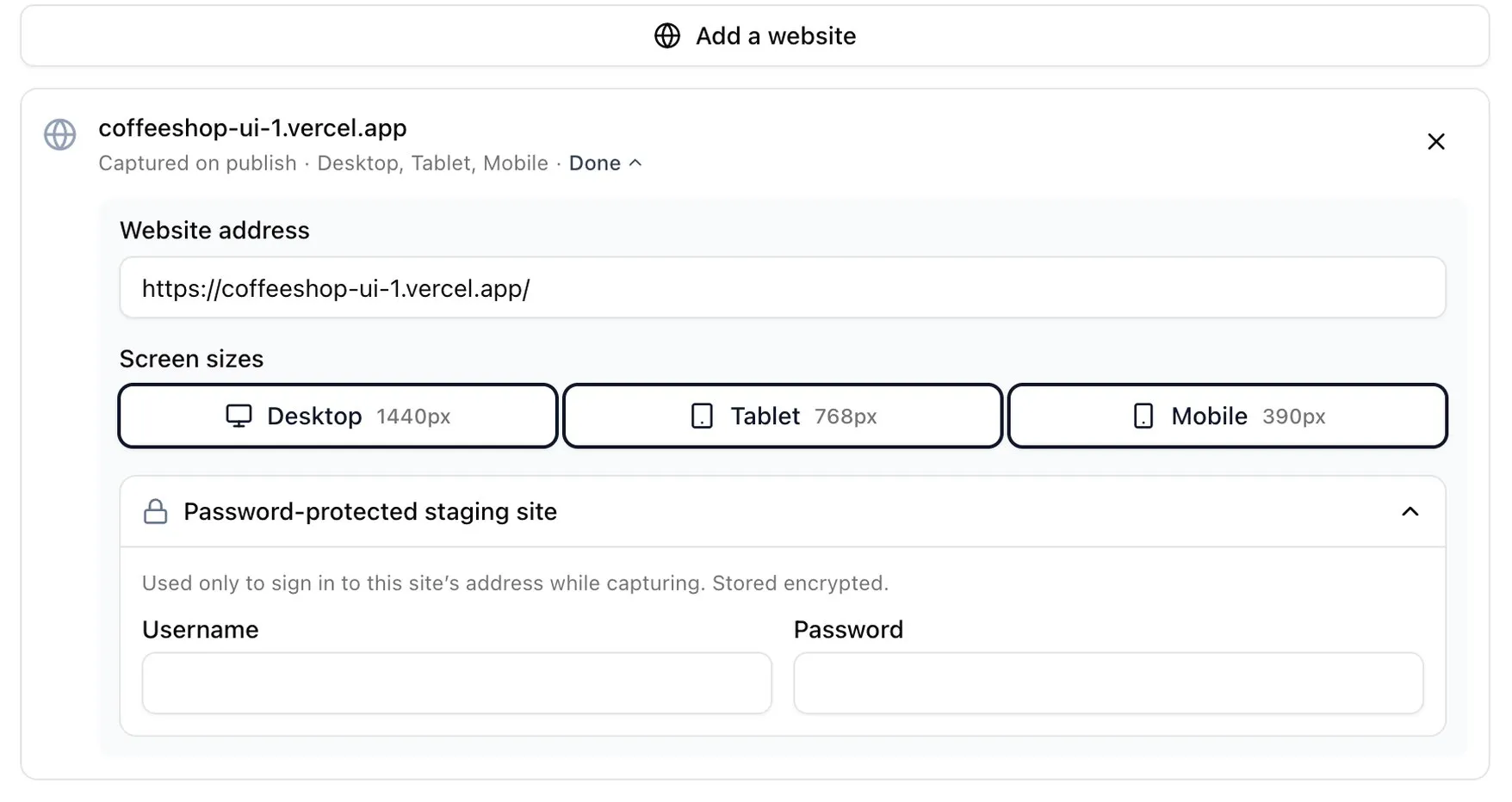
See what visitors see, on every device
A page that looks perfect on a laptop can break on a phone. ProofNow keeps the desktop, tablet and mobile versions of each page together, and each one gets its own comments, so feedback about the mobile menu never gets mixed up with the desktop layout.
- Desktop1440 px wide
- Tablet768 px wide
- Mobile390 px wide

On phones this button feels small. Could it span the full width?
Or review the real, working site
Some things only show up when you use a page: a menu that won’t open, a link that goes nowhere. Live mode opens the actual website inside the proof, so reviewers can try it and comment as they go.
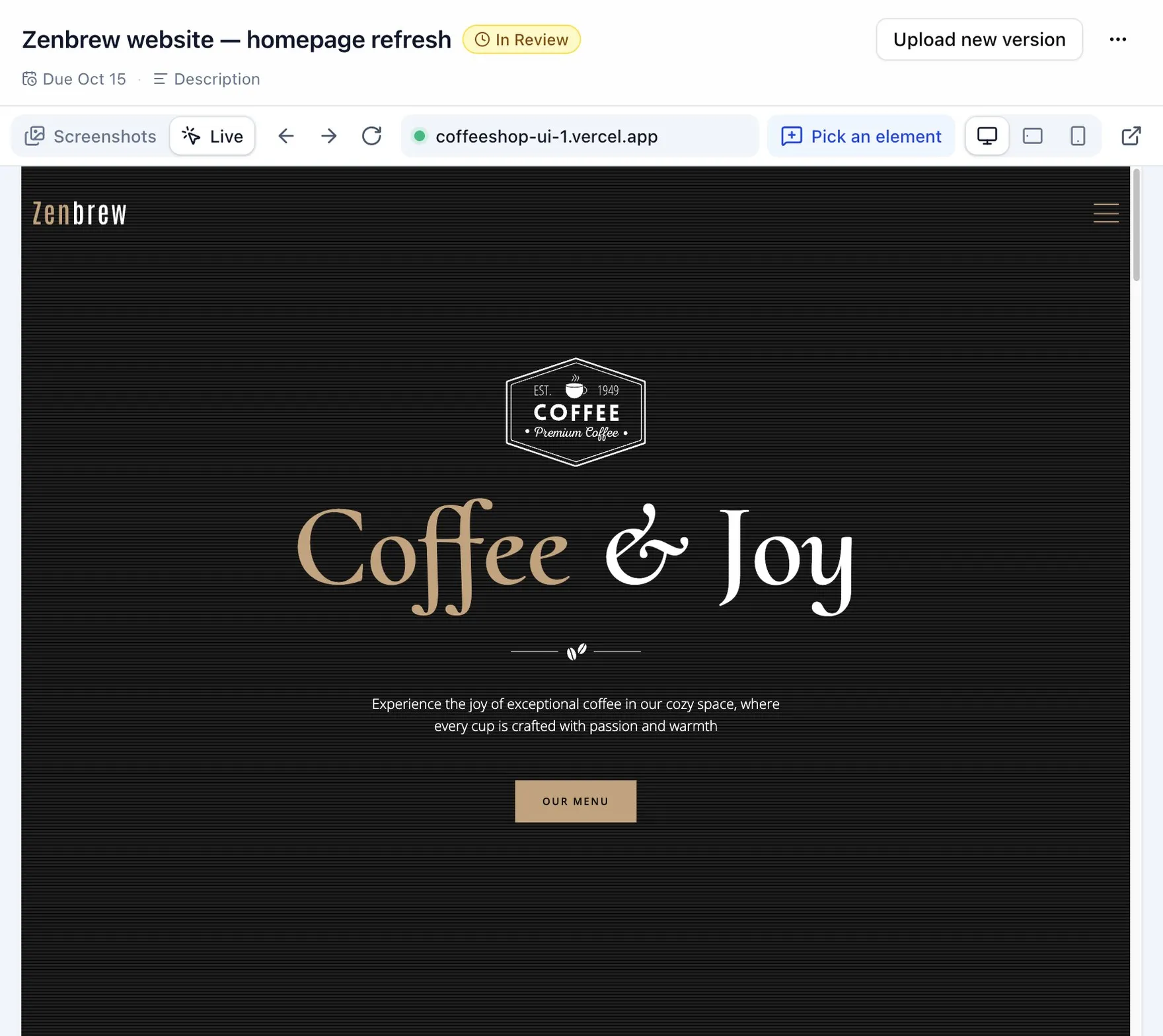
Click through like a visitor
Scroll, open menus and follow links to other pages of the site, without leaving the proof.
Comment on any part of the page
Switch on Comment, click a heading, image or button, and write what needs to change.
Comments that still make sense later
Each comment remembers the page and screen size, and keeps a picture of what the reviewer saw.
Everything a website review needs
Website proofs work like every other proof in ProofNow, with versions, review steps and a full history.
Staging sites behind a password
Review work before it goes live. Add the staging username and password once; they are stored encrypted and never shown to reviewers.
A fresh capture for every version
Upload a new version and ProofNow captures the site again at the same screen sizes. Earlier versions and their comments stay as they were.
Compare before and after
Put two versions side by side, lay one over the other, or highlight exactly what changed.
Clients need no account
Send a review link. Clients comment and approve in their browser, on screenshots or on the live site.
Clear approval steps
Send the site to your team first and the client after, with the same review steps you use for every other proof.
Checked by AI, if you like
Turn on AI reviewers to check the wording on every screen size against your brand rules before your team looks.
Explore AI reviewersZenbrew is a free, open-source coffee shop demo site. It is used here only to show how a review works.
Website review questions
Do I need to install anything on my website?
Which screen sizes can we review?
Can we review a staging site that is behind a password?
What is the difference between screenshots and live mode?
What happens when the website changes?
Do clients need an account to review a website?
Launch websites your clients have already approved
Add ProofNow to monday.com, paste your first web address and share it for review in minutes.